How to Open HTML Files on iPhone and Android
On iPhone, tap the file in the Files app for a quick preview, but don't count on JavaScript running there. On Android, try opening it from a file manager with Chrome. For a full render on either phone, copy the HTML code and paste it into HTMLViewer.io, then switch to the View tab.
On this page
Someone sent you an .html file, and your phone either shows a wall of code, a half-broken page, or an "unsupported file" message. Phones are built to browse websites, not to open web pages sitting in your downloads. You can get a quick preview natively on both iPhone and Android, and for a full render with scripts and styles, paste the code into an online viewer.
Key Takeaways
- iPhone's Files app can show a Quick Look preview of
.htmlfiles, but interactive, script-driven parts may not work there.- On Android, Chrome often can't open files from storage by path; opening from a file manager with Open with > Chrome works on some phones.
- The most reliable route on both is to copy the HTML code and paste it into HTMLViewer.io, then tap the View tab.
- If you're the sender, share a link instead of an attachment so recipients can open it in any mobile browser.
Why phones struggle with HTML files
An HTML file is plain text that a browser turns into a page. On a computer you double-click it and the browser reads it from disk. Phones restrict that on purpose: apps are sandboxed, and browsers aren't allowed to read arbitrary files from your storage.
So when you tap an .html attachment, the phone hands it to whatever app claims that file type. That might be a previewer that ignores scripts, a text viewer that shows raw tags, or nothing at all. Even when it renders, anything the page loads with a relative path (like images/logo.png) is missing, because only the single file came through.
If you want the full background on how HTML files render and why relative paths break, see our guide on how to view an HTML file online.
How to open an HTML file on iPhone
On iPhone, the built-in option is a Quick Look preview in the Files app. It's fine for simple, static pages; don't count on JavaScript running.
Preview it in the Files app
- If the file is an email or message attachment, save it first: tap the attachment, tap the Share button, and choose Save to Files.
- Open the Files app and find the file.
- Tap it. iOS shows a Quick Look preview of the page.
What to expect: text, tables and inline styles usually display. Charts, tabs, menus and anything else built by JavaScript may be blank or frozen, and images referenced by relative paths won't appear.
What about Safari?
Safari on iPhone generally can't open a local .html file from the Files app the way a desktop browser opens a file from disk. Apple doesn't document this as a supported workflow, and share-sheet options vary by iOS version, so it's worth checking your Share menu for a browser option. Just don't count on it, and expect the Quick Look preview to be the closest built-in option.
Getting the code as text on iPhone
To paste the page into an online viewer, you need the source code, not the preview. iOS doesn't include a plain-text editor, so you have a few options:
- Rename it to .txt. Since iOS 16, the Files app can show file extensions: tap the three-dots button, then View Options > Show All Extensions (MacRumors walkthrough). Touch and hold the file, choose Rename, change
.htmlto.txt, and confirm. The preview now shows the code as text, which you can try to select and copy. Rename it back afterward if you need to. - Use a text editor app. Any code or text editor from the App Store that opens files from the Files app will show the source for copying.
- Ask for the code. If the sender generated the page (for example with an AI chatbot), they can paste the code into a message for you.
How to open an HTML file on Android
On Android, the best native option is to open the file from a file manager and choose Chrome. Typing a file:/// path into Chrome often fails on newer Android versions.
Open it from a file manager
- Save the attachment to your phone (it usually lands in Downloads).
- Open your file manager app, such as Files by Google or your phone maker's own app.
- Tap the
.htmlfile. If Android asks which app to use, pick Chrome (or another browser) and tap Just once. - If there's no prompt, touch and hold the file, then look for Open with in the menu.
Whether this renders correctly depends on your Android version, your file manager and your browser. On some phones it works; on others you get a blank page or an ERR_ACCESS_DENIED message.
Why file:/// paths get blocked
Android 10 introduced scoped storage, which limits which files an app can read directly, and apps targeting Android 11 or later can't opt out of it (Android Developers: storage updates in Android 11). In practice, that's why pasting file:///sdcard/Download/page.html into Chrome's address bar often doesn't work anymore. It's a platform security choice, not a problem with your file.
HTML viewer apps
Google Play has many HTML viewer and editor apps that open local files and show either the source or a rendered page. Quality and permissions vary a lot, so check reviews and what storage access the app requests. If you only need to look at one file, the copy-and-paste route below avoids installing anything.
To get the code as text on Android, open the file with a text editor app, or rename it to .txt in your file manager and open it with a text viewer, then select all and copy.
The copy-and-paste route: HTMLViewer.io on your phone
Pasting the code into an online viewer works the same on iPhone and Android, and it runs HTML, CSS and JavaScript fully. HTMLViewer.io has no file upload, so the one requirement is getting the code as text (see the sections above).
- Copy the code. Select all of the HTML source and copy it.
- Open the viewer. Go to HTMLViewer.io in Safari, Chrome or any mobile browser.
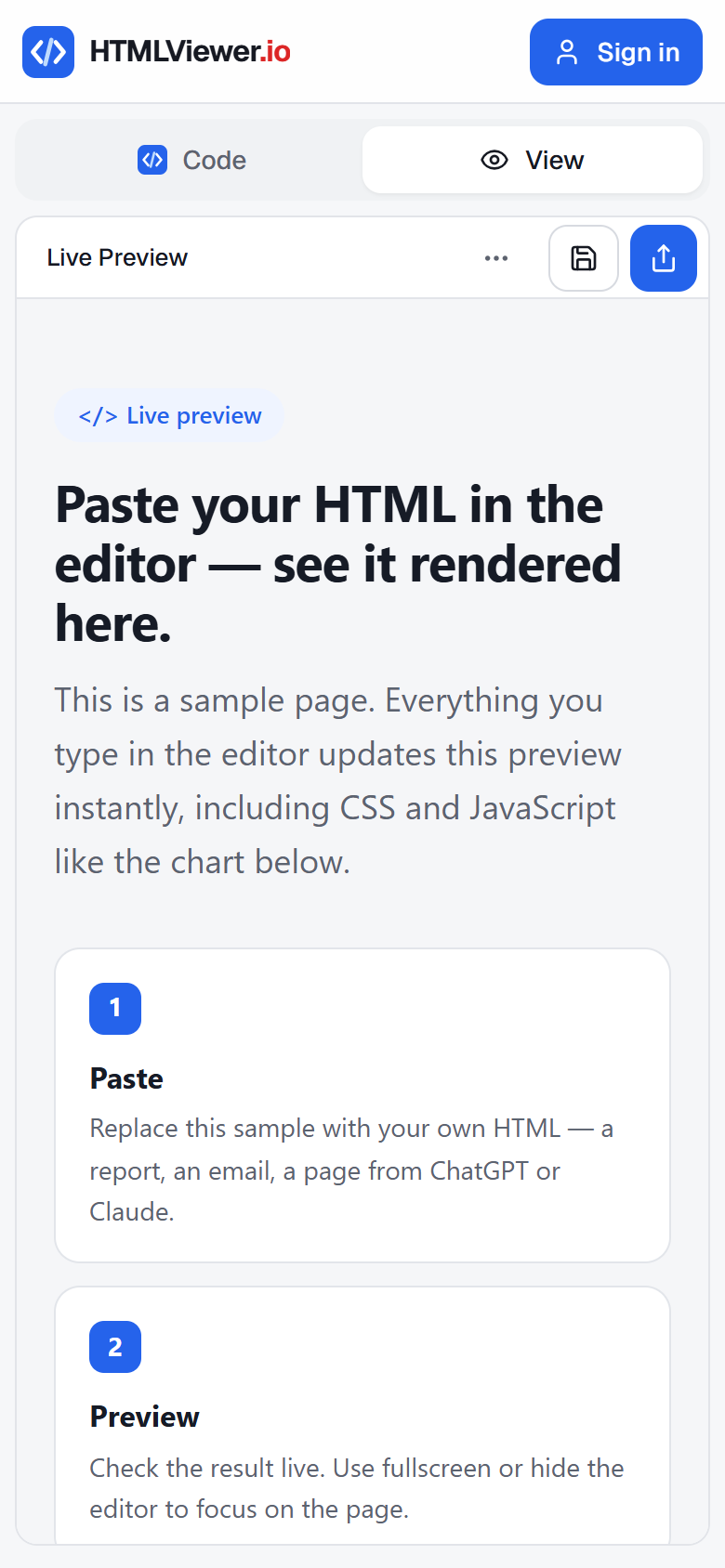
- Paste into the Code tab. On a phone the editor and the preview are split into two tabs. Paste into Code.
- Tap View. The View tab shows the rendered page. Scripts and stylesheets loaded from CDNs work normally, so charts and interactive elements run.
- Save, share or use the ⋯ menu. Save and Share are separate buttons on the toolbar. The ⋯ menu holds Copy share link, Open share page, Export PDF and Fullscreen. On iPhone and iPad, choose the Exact snapshot mode when exporting a PDF, since the text mode may print the whole page.
Previewing and exporting a PDF don't need an account. For more on PDF options, see how to convert HTML to PDF without losing formatting.
The same limit applies here as everywhere else: images or styles referenced by relative paths (like css/style.css) aren't in the pasted text, so they won't load. Pages that use full https:// URLs or inline <style> blocks render completely.
Sending HTML so people can open it on their phones
If you're the one sending the file, send a link instead. A link opens in any mobile browser in one tap, with no saving, renaming or copying.
On HTMLViewer.io, sign in with Google, save the document (up to 5 MB), and tap Share to get a link that's public or limited to specific email addresses; recipients see the rendered page full-width in their phone's browser. Our guide to sharing an HTML file as a link walks through the options, and if the page came from ChatGPT, Claude or Gemini, see how to preview and share AI-generated HTML.
Which method should you use?
Use the native preview for a quick look at a simple page. Use the copy-and-paste route when the page relies on JavaScript or looks broken, and share a link when you're the sender.
| Method | Works on | Runs JavaScript | Needs install | Best for |
|---|---|---|---|---|
| Files app Quick Look | iPhone, iPad | Don't count on it | No | Quick look at simple, static pages |
| Safari from a local file | iPhone | Yes, if it opens | No | Not reliable on current iOS |
| File manager > Open with Chrome | Android | Yes, if it opens | No | Quick render; varies by phone |
Typing a file:/// path in Chrome |
Android | Yes, if allowed | No | Often blocked on newer Android |
| HTML viewer app | Android, iPhone | Varies by app | Yes | Frequent local HTML viewing |
| Paste into HTMLViewer.io | Any phone browser | Yes | No | Full render of a single file |
| Share a link from HTMLViewer.io | Any phone browser | Yes | No (sender signs in) | Sending HTML to other people |
None of these methods restore files that weren't sent with the HTML. If a page depends on a folder of images or stylesheets, the reliable fix is to open it on a computer with the full folder, or ask the sender for a self-contained version.
Frequently asked questions
Why does my phone show code when I open an HTML file?
The app you used treats the file as text instead of a web page. Open it with a browser or a preview tool, or paste the code into an online HTML viewer that renders it.
Can I open a local HTML file in Safari on iPhone?
Not reliably. Safari on iPhone generally can't open a local .html file from the Files app the way desktop browsers do. The Files app can show a Quick Look preview, but interactive pages and charts may look incomplete there.
Why does Chrome on Android say ERR_ACCESS_DENIED for an HTML file?
Newer Android versions limit which files apps can read directly, so Chrome often can't open a file:/// path from your storage. Open the file from a file manager with Open with > Chrome, or paste the code into an online viewer.
Can I upload an HTML file to HTMLViewer.io from my phone?
No, there's no upload. You need to copy the HTML code as text, then paste it into the Code tab. The View tab shows the rendered page.
How do I send an HTML page so people can open it on their phones?
Send a link instead of an attachment. On HTMLViewer.io, sign in with Google, save the document, and share its link publicly or with specific email addresses; it opens in any mobile browser.
Paste your HTML and see it rendered in seconds — free, no sign-up needed to preview.
Open HTML Viewer