How to Preview HTML Email Templates Before Sending
Paste the email's HTML into a browser-based previewer to check layout, copy, links and images at desktop and mobile widths, and share a link for approval. Then test in real email clients, with test sends or a tool like Litmus or Email on Acid, because Outlook, Gmail and dark mode render email differently from a browser.
On this page
You've built a newsletter or transactional email and want to see it before it goes to thousands of inboxes. The quick answer: preview the HTML in a browser for layout, copy and links, share it for sign-off, then test in real email clients, because a browser preview can't show you what Outlook or Gmail will do to it.
Key Takeaways
- Email HTML is not web HTML: it relies on tables and inline CSS, and each email client supports a different subset of CSS.
- A browser preview is fast and good for layout, copy, links and images, but it renders like a browser, not like Outlook or Gmail.
- Share a rendered link for stakeholder approval instead of sending around attachments or screenshots.
- Finish with test sends and, for important campaigns, a client-testing tool such as Litmus or Email on Acid.
Why email HTML is different from web HTML
Email clients don't run a full, modern browser engine the way Chrome does, so email HTML is written defensively. The same code can look perfect in one inbox and broken in another.
The main differences:
- Table layouts. Classic Outlook for Windows (the traditional desktop app, including the Microsoft 365 desktop version, as opposed to the new Outlook) uses Microsoft Word as its rendering engine. Litmus's Outlook guide explains that Outlook ignores most styles on
<div>tags, including widths and padding, which is why email layouts are still built with<table>. - Inline CSS. Many clients strip or limit
<style>blocks. Can I Email notes Gmail doesn't support<style>inside the<body>and limits the style tag to 16 KB, so critical styles are usually inlined on each element. - Limited CSS support. Flexbox is a good example: Can I Email's flexbox table shows
display: flexisn't supported in classic Outlook on Windows. Gmail's own CSS support page lists the properties and selectors it accepts and says unsupported ones may be ignored. - Outlook is changing. The new Outlook for Windows no longer uses Word; according to the Email Markup Consortium, it uses a normal web browser engine, much like Outlook on the web. Classic Outlook is still in use, though, so you have to design for both.
- Dark mode. Support for the
prefers-color-schememedia query varies. Can I Email lists Apple Mail as supporting it, classic Outlook for Windows as not supporting it, and Outlook.com adding its owndata-og*attributes when showing an email in dark mode. Logos with transparent backgrounds and dark text on transparent images are the usual casualties.
Can I Email is the standard reference for checking a specific HTML or CSS feature before you use it.
What a browser preview can and can't tell you
A browser preview answers "is this email correct?" but not "will it look the same in every inbox?" Knowing where that line falls saves you from false confidence.
| Check | Browser preview | Real email clients / testing tool |
|---|---|---|
| Overall layout and spacing | Yes | Yes |
| Copy, typos, personalization placeholders | Yes | Yes |
| Links go to the right place | Yes | Yes (and tracking redirects) |
| Images load, sizes, alt text | Yes | Yes (and image blocking) |
| Mobile layout at narrow width | Approximate | Yes |
| Classic Outlook (Word engine) rendering | No | Yes |
| Gmail's CSS stripping and rewrites | No | Yes |
| Dark mode color changes | No | Yes |
| Spam filtering, sender reputation | No | Partly, with specialist tools |
The browser column is the fast inner loop: edit, look, fix, repeat, in seconds. The right column is the final gate before sending.
Step-by-step: preview your email template in HTMLViewer.io
HTMLViewer.io is a free, in-browser HTML viewer. You paste the email's HTML and get a live preview that updates as you type. It renders like a browser, not like Outlook or Gmail, so treat it as the first check, not the last.
1. Copy the full HTML
Get the complete HTML, from <!DOCTYPE html> to </html>. Depending on where the email lives:
- A template file: open the
.htmlfile in a text editor (Notepad, TextEdit, VS Code), select all and copy. HTMLViewer.io has no file upload, so copy and paste is the way in. - An email platform: most tools have an HTML or code view you can copy from, or an "export HTML" option.
- An AI chatbot: copy the code block. The guide to previewing AI-generated HTML covers the common gotchas.
2. Paste it and check the desktop layout
Paste into the editor. The preview renders the email immediately, including images hosted on a server and web fonts loaded from a CDN. Images referenced by a local path on your computer (images/logo.png) won't load, which is also a useful warning: in a real email they need absolute URLs too.
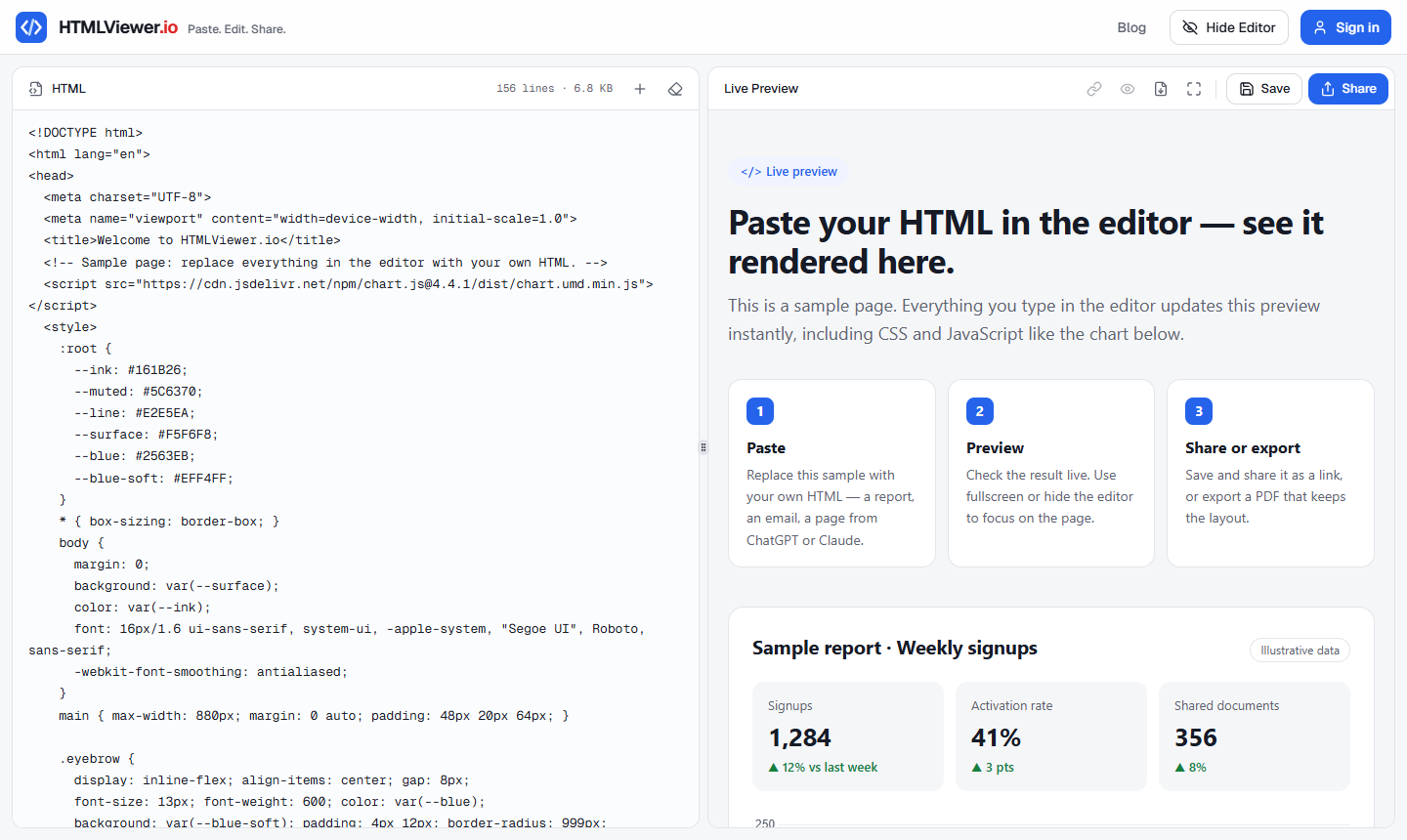
Most emails are designed around a 600–640px wide container. Click Hide Editor to get a preview-only view, and check that the container is centered and nothing overflows.
3. Check the mobile width
Narrow the view to see the mobile layout. On desktop, resize the browser window until it's phone-width; your responsive media queries should kick in. Or open htmlviewer.io on your phone, paste the code in the Code tab, and look at the View tab. See opening HTML on iPhone and Android for the copy-paste steps on a phone.
4. Click everything
Click every link and button. Check for placeholder URLs (#, example.com), merge tags that haven't been replaced ({{first_name}}, *|FNAME|*), missing alt text, and images that are too large or blurry.
5. Share it for copy approval
This is where a browser preview saves the most time. Instead of emailing an .html attachment that half your reviewers can't open, sign in with Google, save the email, and send its share link, either public or limited to your reviewers' email addresses. Reviewers see the rendered email full-width in their browser; the options are covered in how to share an HTML file as a link.
HTMLViewer.io doesn't have comments or real-time co-editing, so collect feedback in your usual channel (email, Slack, your project tool).
6. Test in real email clients
Once layout and copy are approved, move to client testing:
- Send test emails to accounts on the clients your audience uses: Gmail (web and app), Outlook (classic desktop, new Outlook, and Outlook.com), Apple Mail on iPhone and Mac. Toggle dark mode on each.
- Use a testing tool for broad coverage. Litmus and Email on Acid both advertise previews across 100+ email clients and devices (Litmus includes dark mode), so you don't need to own every device.
- Use your email platform's test send and preview, since it applies its own processing (CSS inlining, link tracking) that a raw HTML preview won't show.
Which tool for which job
Each tool covers a different part of the process; most teams use two or three.
| Tool | Best for | Limits |
|---|---|---|
Opening the .html file in a browser |
Quick look at your own local file | Hard to share; local images work here but not in a real email |
| HTMLViewer.io | Fast preview, mobile check, shareable link for approval | Renders like a browser, not like email clients |
| Your email platform's preview | Seeing the email after the platform's processing | Only as accurate as the platform's own preview |
| Test sends to real inboxes | True rendering on the clients you own | Slow; limited to accounts and devices you have |
| Litmus / Email on Acid | Rendering across many clients, including classic Outlook and dark mode | Separate subscription products |
Pre-send checklist
Run through this before every send:
| Check | How |
|---|---|
| Layout at desktop width (~600px container) | Browser preview |
| Layout at mobile width | Narrow window or phone |
| No broken or placeholder links | Click every link in the preview |
Images use absolute https:// URLs and have alt text |
Preview plus a look at the code |
| Merge tags / personalization filled or with fallbacks | Platform test send |
| Copy approved by stakeholders | Shared link |
| Classic Outlook rendering | Test send or testing tool |
| Gmail rendering (web and app) | Test send or testing tool |
| Dark mode on Apple Mail, Gmail, Outlook | Test send or testing tool |
| Subject line and preheader text | Platform test send |
If you also need a static copy of the approved version for your records, you can export the preview as a PDF; how to convert HTML to PDF explains the two export modes.
Frequently asked questions
Can I preview an HTML email in my web browser?
Yes. Opening or pasting the HTML into a browser shows the layout, copy, images and links. It won't show how specific email clients like classic Outlook or Gmail will change the rendering, so still send test emails before a real campaign.
Why does my HTML email look different in Outlook?
Classic Outlook for Windows renders HTML with Microsoft Word's engine, which ignores much of modern CSS, including flexbox and many div styles. Table-based layouts with inline styles hold up best there.
Does Gmail support CSS in the head of an email?
Gmail supports style blocks in the head with class, element and ID selectors, and media queries. Can I Email notes that styles aren't supported inside the body and the style tag is limited to 16 KB.
How do I test an HTML email on mobile?
For a quick check, view the HTML at a narrow width in a browser or on your phone. For real accuracy, send a test email to the mail apps your audience uses on iPhone and Android.
How can I get approval on an email design without sending it?
Share a link to the rendered HTML instead of attaching the file. In HTMLViewer.io you can save the email and share a public link or invite specific email addresses; saving and sharing require Google sign-in.
Paste your HTML and see it rendered in seconds — free, no sign-up needed to preview.
Open HTML Viewer